Designing a digital year in pixels journal
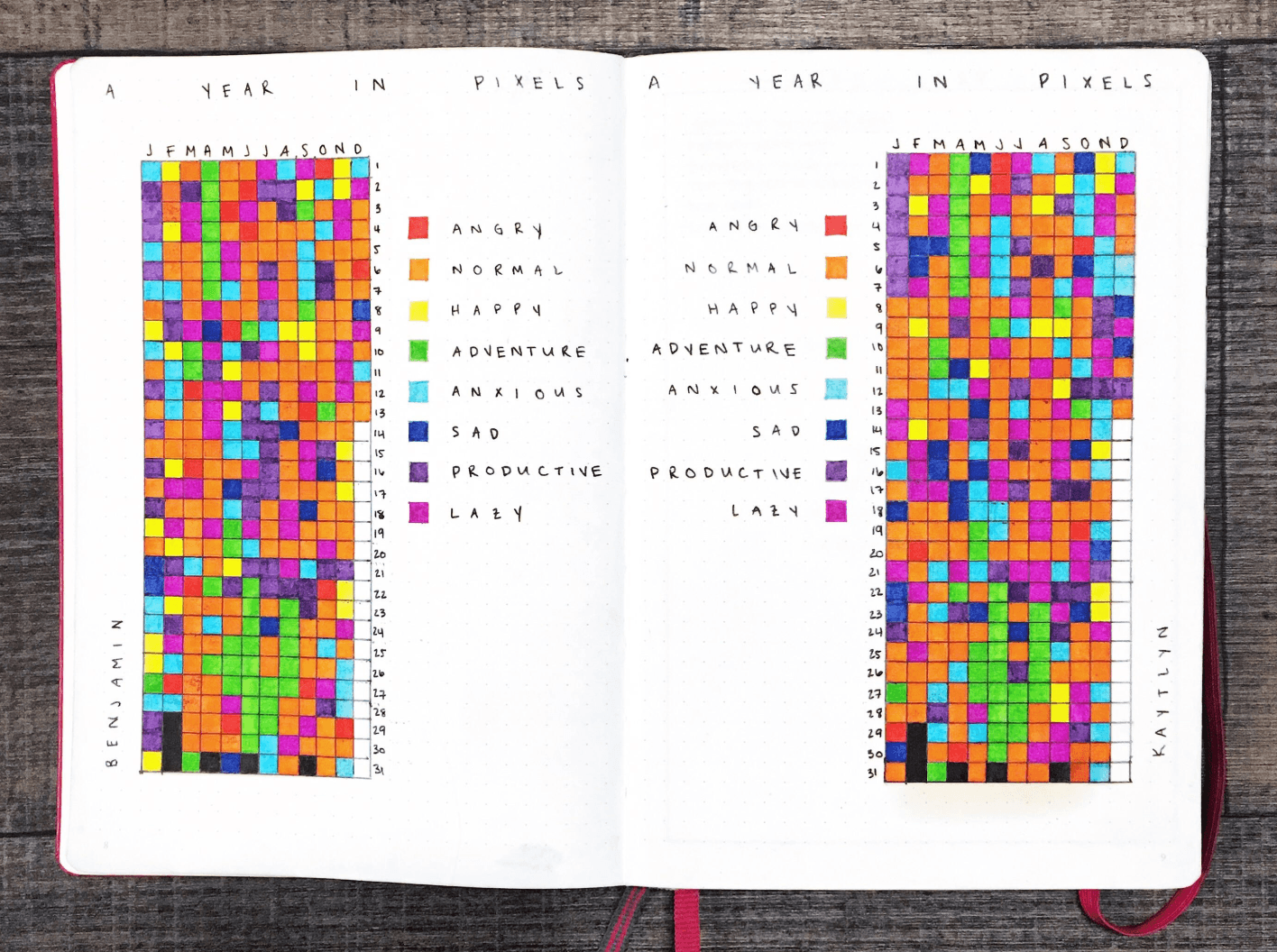
This started as an experiment. I wanted to learn how to build products using AI — not just by reading or watching tutorials, but by actually making something. If I was going to build something, I wanted it to be useful to me, not just a random demo.
At the time, I was looking for a very simple way to journal. That’s when I came across the idea of a Year in Pixels.
A Year in Pixels is a visual form of journaling where each day of the year is represented as a small coloured square. The grid spans months horizontally and days vertically. Each square represents the overall mood or feel of that day. When viewed as a whole, the year becomes a colourful mosaic — almost like a zoomed-in photograph where every pixel is a day.
This piece documents the steps I took to build it, from idea to working product.
Framing the problem
When I started looking into Year in Pixels, I realised most people were doing it on paper—drawing grids, assigning colours, and manually filling in squares every day. It’s simple and expressive, but it also comes with friction: you need stationery, you need time, and once you commit to a layout or a colour scheme, it’s hard to change anything.
Friends who tried it told me they would forget to update for days because their notebook wasn’t always with them. Others wanted cleaner layouts or the ability to adjust colours later, but paper doesn’t give you that flexibility.
That made the core problem clearer:
People like the idea of tracking how their days feel, but the physical format makes it hard to maintain.
To summarise the friction points I identified:
Drawing a full year grid isn’t quick
Changing colours or moods is messy once ink is on paper
Journals aren’t always with you
Easy to forget — no reminders or quick prompts
The goal became simple:
Keep the charm of Year in Pixels, remove all the frictions.
Early experiments
Immediately after the idea clicked, I opened Figma and started ideating. The main flow was simple in my head:
pick your colours → fill the grid with them.
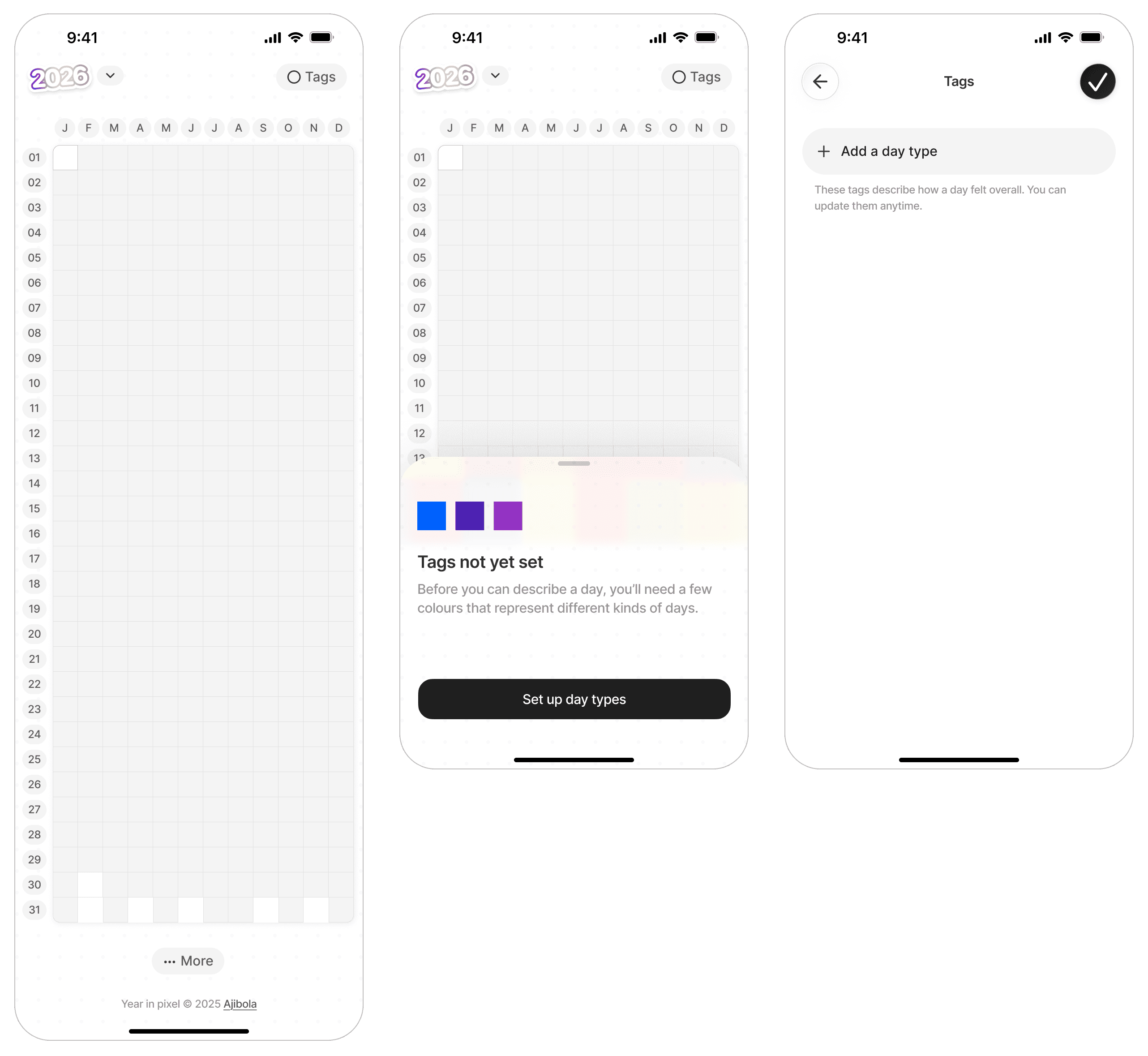
At first, I tried preset moods like Happy, Sad, Tired, and Productive with predefined colours. It made onboarding feel fast, but it didn’t sit right. Very quickly I realised I was doing something I personally dislike as a user — telling people how they should name their feelings and what colour those feelings should be.
So I scrapped the presets and switched to user-defined tags, where each person chooses:
the name of their “day type”
the colour that represents it
The structure stays consistent, but the language and meaning belong to the person using it. I also capped the number of tags at 6, because fully user-defined tags have a hidden cost: choice paralysis. Too many colours and too many labels can make the system harder, not easier (hick’s law). A small constraint to keep things simple and less overwhelming.
9:41
Close
Done
Type what kind of day this colour represents…
Choose the colour
Tag
Day type will appear here
You’ll use this tag to describe days across your year.
Kick starting development
After I finished designing the screens in Figma, I moved to implementation. I fired up Antigravity, set up my workspace, created a project folder, and chose a coding agent (Model: Gemini 3 Pro (High), Conversation mode: Planning). Inside that folder I made an assets directory where I stored all my high-quality screens, icons, and exports making it easy to upload anything to the agent when needed.
I started by explaining what I wanted to build, Gemini created it’s implementation plan (that’s why I used planning mode), then uploaded the first screen. This part was rough. Getting Gemini to lay things out exactly how I designed them wasn’t straightforward. I found myself prompting over and over, burning through tokens and still not getting the level of detail I expected.
Eventually I had to change my approach. I started prompting like a designer. I described the UI almost exactly the way I made it—down to spacing, padding, alignment, and structure. It felt like narrating my own Figma file in words. Most times, I would copy the icons as svg from figma and paste so that my coding agent can work with that. That shift made a noticeable difference.
From there, Gemini slowly began to pick up on the design style. It started trying to match the UI more closely, almost as if it was learning. When something didn’t look right, I would describe the layout again and it would adjust.
When Gemini is thinking and working on an implementation plan, i made sure i glanced through it’s thought process, this gives me an insight on what it’s about to do. If it is going in wrong direction, I can quickly rewind and rewrite my prompt. I also learned when to step in manually. Sometimes the fastest fix was to open the code editor and tweak a few CSS properties myself. (I’ve always been able to read and write HTML and a bit of CSS, so that came in handy. But JavaScript? Error 404 😂)
As a designer, I’m obsessive about pixel precision. One of my design mentors,
Leye Oyesanya, once said something that stuck with me:
“If you are a designer vibecoding a product, the least expectation is that it should be well designed. Your colours, alignment and type should be well done. You are a designer — that should count for something. You don’t stop being a designer because you are building with AI.”
So I focused heavily on the UI. After making sure the core screens were visually consistent and felt right, I deployed a quick prototype and sent it out for testing.
Initial prototype
Feedbacks
Once the first prototype was live, I shared it with friends and early users. This stage changed the project more than anything I planned alone. People used it differently, asked for things I hadn’t considered, and pointed out friction I stopped noticing. A few themes showed up quickly:
Can I add a photo? People wanted to attach an image to a day, not just text.
This turned the app into a small memory log.
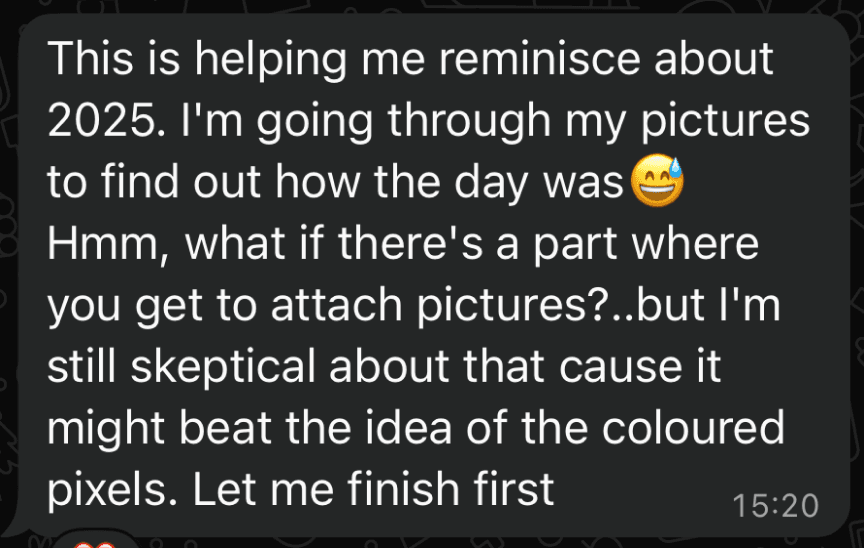
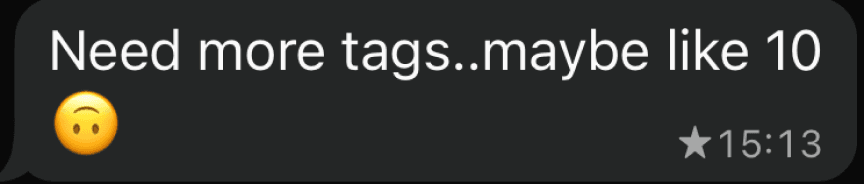
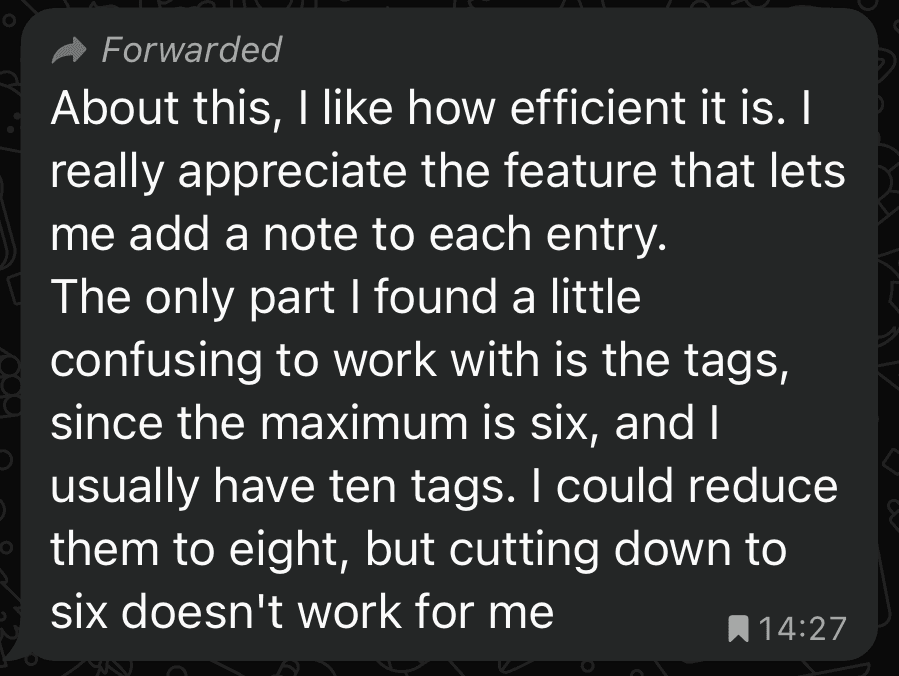
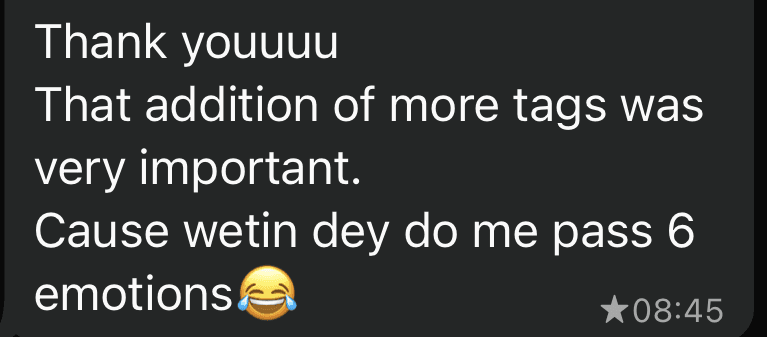
Need more tags. Some early users felt that six tags didn’t capture the range of their days. I increased the limit to eight. The original cap was set at six to reduce cognitive load and prevent tag creation from becoming work.
Choosing colours is hard. With so many colours, people sometimes froze. I added a colour guide to support decisions without imposing presets. The app should help, not replace the user’s own choices, just like if they were journaling on paper.

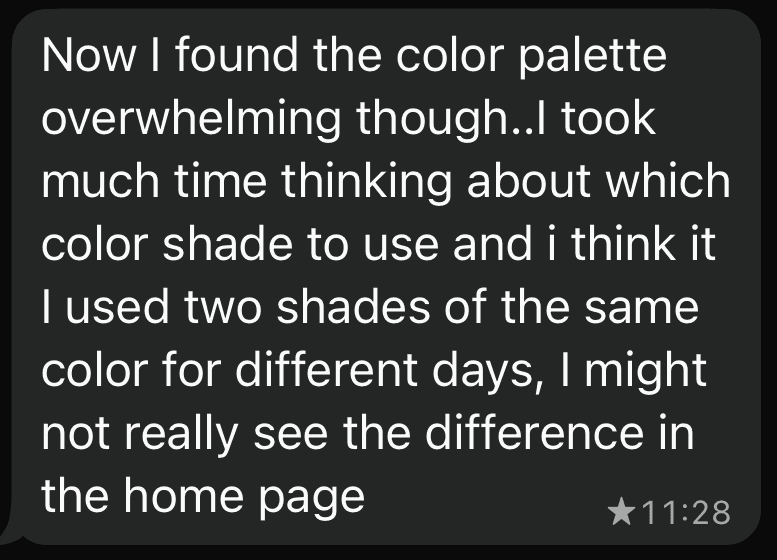
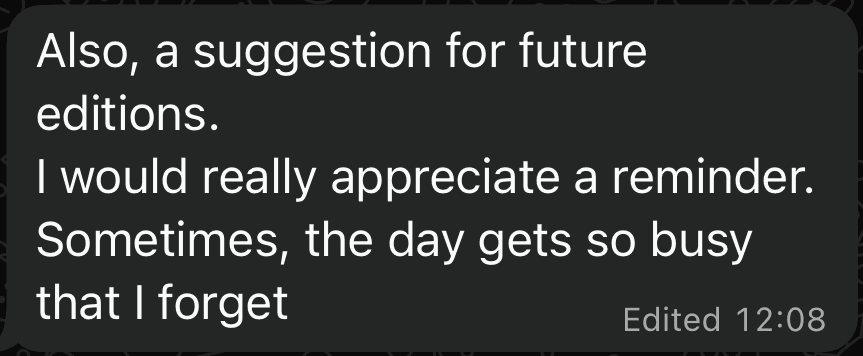
Remind me to log my day. Days could get so busy and people might simply forget to log their day. So, I added an optional daily reminders via web push.

I want to search my notes. Some people started journaling inside the notes, then later wanted to find something they’d written. So I added a search tool under More — you type what you remember, and the app looks through your notes and highlights matches.
I want to delete a tag. I didn’t personally agree with this feature at first, but enough users asked for it that it became worth adding. To support the request, I introduced a swipe-to-reveal pattern for tag deletion. It keeps the action available, but not loud or accidental.
Database Integration
After collecting feedback, I began working on the more complete version of the product, implementing improvements as I refined the interactions. Before I could design the behaviour of each screen, I needed a way for users’ data to persist. They had to be able to log in, return to where they left off, and trust that their notes and colours were secure.
I researched databases that integrate well with LLM-driven development and chose InstantDB. My first attempt was simple: I asked the coding agent to research InstantDB and create an authentication flow that saved emails. It failed beautifully.
Users received login codes, but nothing was tied to an actual account. The database wasn’t storing identities — it was just sending codes into the void. Debugging took an entire day. I combed through the web console, traced requests, and realised the problem: the agent didn't understand InstantDB’s rules.
So I scrapped the initial setup and went back to the documentation myself. I found that InstantDB provides specific rule sets for different LLMs. I copied the entire rule set for Gemini into a fresh workspace and told the agent to read it, follow it, and reference it with every database task.
That changed everything. With the proper constraints, the LLM understood the model, the schema, and the auth flow. All my database issues disappeared. Once persistence was stable, I focused on the core functionalities of the app. Everything that requires storage on the database, was very easy to do. I just tell the LLM and it handles everything.
It created Namespaces to store emails, color codes, images in base 64 format etc.
Interactions
The flow begins with creating an account, or signing in if you already have one. Authentication is email-based: you enter your email, receive a verification code, and use it to access your data.
The next step is creating tags, which act as “day types.” On the tag creation page, users name the tag and assign it a colour. To address decision paralysis around colour choice, I added a “Struggling to decide?” button. When tapped, it opens a colour guide that helps users pick a colour without forcing presets.
Once tags are set, the main interaction begins: colouring the grid. Each day is assigned a tag that reflects how it felt. Users can optionally add a short note or attach a photo to give the colour more context.
When you revisit a previous day, you can see the details you added. For a small touch of delight, tapping on an attached image opens it in a 3D view that can be tilted by dragging.
Previous logs are editable. Tapping Edit brings up the same interface used for logging a day, prefilled with the existing colour and note, allowing for small adjustments without starting over.
Deletion is handled through a confirmation dialog, and once confirmed, the log is removed from the grid and from the database entirely.
If a user wants to delete a tag entirely, they can swipe on the tag to reveal a delete action. I chose this interaction intentionally. Deleting a tag is a heavy action—doing so removes the tag everywhere it has been used, including any notes and photos attached to it—so the delete option shouldn’t feel casual or always-visible. The swipe creates just enough friction to make the user pause, similar to how you can’t casually erase ink on paper.
It also introduces a small “aha” moment. Swipe-to-reveal isn’t immediately obvious, and that’s part of the charm. When users discover it, it creates a brief feeling of delight and a sense of “I figured it out,” which is a very different emotional note than tapping a visible trash icon. It makes the action feel intentional and a little bit clever, without adding complexity.
When you tap More, a fly-out appears where you can send suggestions, search notes, log out, or download your grid to share.
At first, this button sat quietly at the bottom of the home page because it only handled suggestions and log out. But once it started doing more, I moved it to the footer where it makes more sense and is easier to reach.
Clicking Suggestions opens a page where users can propose features or report issues. All entries are stored in the database. I asked Gemini to create a dedicated namespace for suggestions, and it did so cleanly. Each entry is saved along with the user’s email, making feedback traceable without needing a separate platform.
Users can search their notes by typing any word they remember. The app looks through all stored notes and returns matches with short excerpts.
Users can download an image of their year. The export includes the grid and the tag colours, so it’s easy to share or save outside the app.
Reflections
The hardest part of this project, as a designer, was getting an LLM to build the UI exactly the way I envisioned it. Halfway through, I realised I had taken the harder route. I could have simply used a Figma MCP and connected it to my IDE, which would have made design-to-code much more accurate and saved me a lot of prompting (and tokens). Still, I’m genuinely impressed by how much I was able to build with minimal engineering background. A lot of the learning happened by staring at the console or reading through code until something clicked, and there was a certain beauty in that. From there, it’s iteration — test a feature, notice what’s wrong, describe it, try again. Repeat.
At one point, the codebase got disrupted so badly that entire screens disappeared and I couldn’t even debug what had happened. I had to redesign the screen, prompt the AI again, and watch it rebuild the whole thing from scratch. That cycle became normal. After that incident, I started regression-testing the whole app after every feature update to make sure nothing silently broke in the process. It became a small discipline—build, verify, adjust—before moving on.
This also started as a very personal tool. When other people began using it, the project changed. Private assumptions had to become shared decisions. My preferences had to become options rather than defaults. That’s how well-designed products evolve: they are shaped by the people who use them, not just the person who made them. The creator’s bias eventually has to step aside so the product can become more useful than personal, and more honest than the original concept.